
Lesson 3, and the first in the series: build your AI chief of staff, one piece at a time.
Here's what you'll have by the end of this lesson. Maria, a made-up owner of a three-person bookkeeping firm, found this waiting at 8:03 on Tuesday:
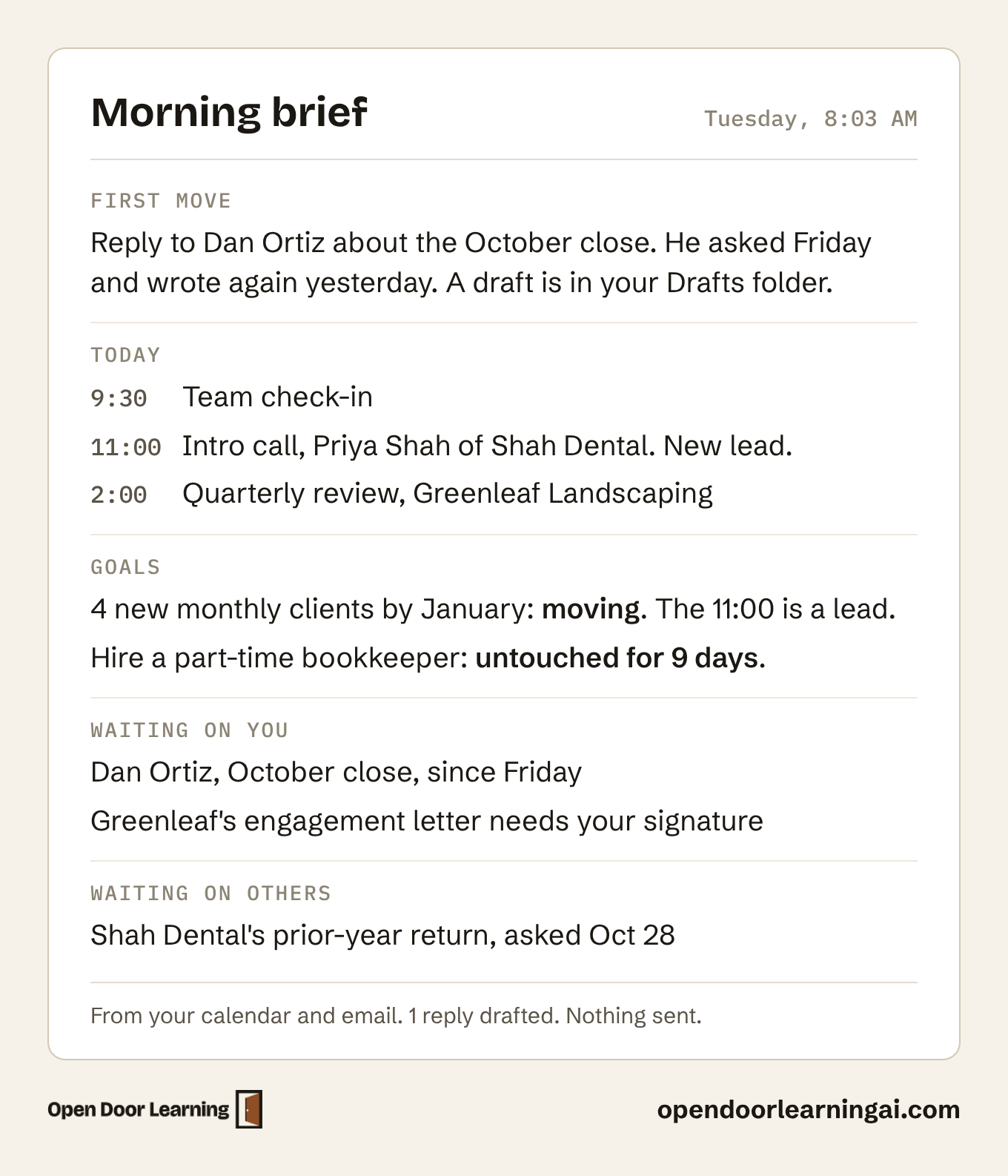
She didn't open her calendar or her inbox to get it. Her assistant read them and drafted the reply to Dan. She still sends it herself.
Before you start
You need the Claude desktop app on a paid plan and a folder for your assistant to work in. Use the one from Lessons 1 and 2, or any folder in Documents.
Then connect your email and calendar. In Claude: Customize, then Connectors, then Gmail and Google Calendar (or Outlook). Sign in with your business account and tick every box on the sign-in screen. If your to-dos live in an app like Todoist, connect it the same way. That's the only setting you change by hand.
Step 1: Set it up
Start a new chat, add your folder with the + button, and paste this:
Set up my morning brief. Work only in the folder I've added.

1. Check that you can read my email and calendar, and tell me in one line.
2. Ask me, one at a time: my two or three goals for the next 90 days, where my to-dos live (this folder or an app like Todoist), and my time zone.
3. Save my answers in About-Me.md. If my to-dos live in this folder, start This-Week.md from my answers and the last 7 days of my email and calendar.
4. Save the brief's steps in Workflows/Daily-Brief.md: read my to-do list first, then About-Me.md, today's calendar, and email from the last 24 hours (72 on a Monday) where someone is waiting on me. Write one phone screen: First move, Today, Goals, Waiting on me, Waiting on others. Keep my to-do list current. Draft up to 3 replies.
5. Run it once and show me.

Never send, delete or change anything outside this folder without asking me first.
It asks its three questions, writes the files and shows your first brief. You'll know it worked when the brief lists today's real meetings and at least one email you know is still open.
Step 2: Make it run every morning
Once the first brief looks right, schedule it. A scheduled task can't read your folder. This prompt stands on its own, with your goals in it. In the Claude sidebar, click Scheduled, then New task, then Create with Claude. Paste this, put in your goals, then click Schedule:
Every weekday at 8:00 AM, write my Daily Brief from my email and calendar. Call the task Daily Brief.
- First move: the one thing to do first today.
- Today: each meeting, with its time and who's in it.
- Goals: one line on how each of my goals stands.
- Waiting on me: up to 5 emails that need my reply.
- Waiting on others: emails I sent that still need an answer.
My goals: [your 2 or 3 goals].
Draft replies to up to 2 of those emails and save them in my Drafts. Never send, delete or archive email, and never change my calendar. Keep it short enough to read on my phone.
Click Run now to see your first one, and approve anything it asks. It runs in the cloud and arrives even with your laptop closed. You'll find it under Scheduled in the sidebar, and you can pause it there. You'll know it worked when Daily Brief shows under Scheduled and Run now gives you a brief with today's real meetings.
The fuller brief, with your to-do list, still runs any time in a chat with your folder added: "Run my daily brief."
When something's off, say so
Tell it in the same chat. It fixes the brief and saves the rule, so your next brief follows it:
That's wrong: [what's wrong]. Fix it, and save the rule so you don't do it again.
Three common ones: "Never prep the Monday team check-in." "I'm on US Central time." "Skip receipts and newsletters. Only people." To see the steps it follows, ask "Show me my daily brief steps."
The 8:00 brief can't read your folder. Add the same rule to its prompt under Scheduled.
Already use a to-do app?
If your list already lives in Todoist or Asana, use it instead of This-Week.md, so you keep one list. Connect the app under Connectors, then paste:
My to-dos live in Todoist. From now on, use Todoist instead of This-Week.md in my daily brief. Show me what's in This-Week.md that Todoist is missing, and add it once I say yes. Then update About-Me.md and stop using This-Week.md.
If you named your app in step 1, it's already set up that way. Your assistant reads the app freely and asks before it changes anything there.
This week
Read the brief before you open your inbox, every morning this week. On Friday, count the mornings it caught something you'd have missed.
Next Thursday, Lesson 4 adds meeting prep, so the brief hands you a short card before that 11:00 intro call.
If this was useful, forward it to one owner who starts every day in their inbox. New lessons go out every Thursday, and the Monday issue covers what's worth trying: opendoorlearningai.com/newsletter