
 | Hi, I'm Jonathan Malkin. I teach owners and teams to solve real business problems with AI. |
Monday's issue tells you what's worth trying. Thursday lessons walk you through doing it in your own business. They're the basics I teach in my workshops, written down so you can follow along at your own pace.
- Every Monday: one thing to try, one thing to know, and what's safe to skip.
- Every Thursday: one hands-on lesson, with prompts you can paste.
Give Your Next Hire a Map (Even If It's an AI)
A lesson in two parts: map where your work lives in about 10 minutes, then move it into one home.
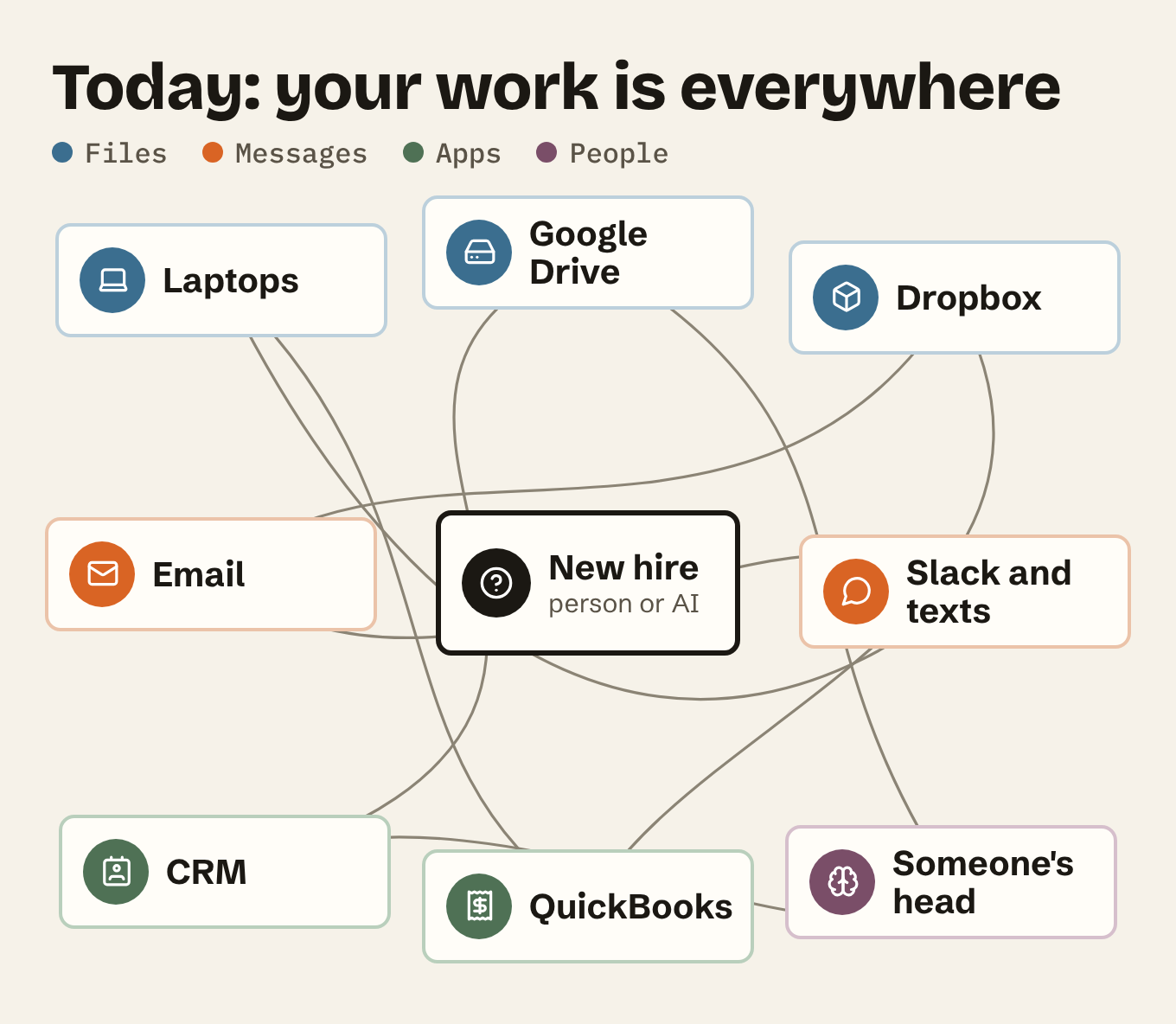
- A new hire's first week is a scavenger hunt: laptops, Google Drive, Dropbox, email, Slack, the CRM and someone's head.
- A person asks around until they find what they need.
- An AI agent can't ask around. It works with what you hand it, then guesses or stops.
The fix: one page that says where everything is
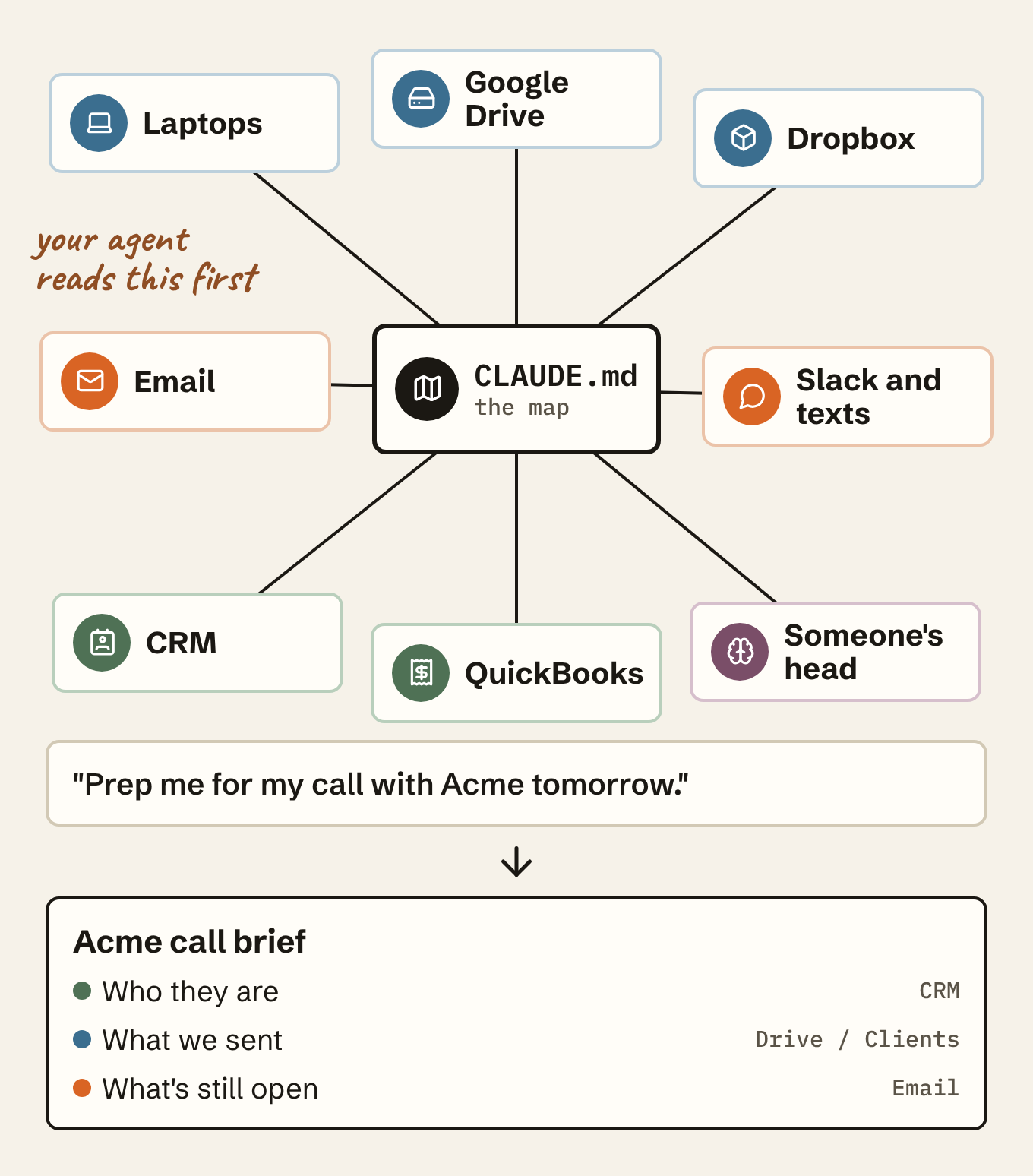
- The map is one short file. It lists each kind of work and where it lives.
- Your agent reads the map first, then goes straight to the right place.
- Connections give Claude access. A map gives it a route through your work.
- I did this for an online education business. Their team now asks AI a member's question and gets an answer from their own material.
Part 1: Make the map in about 10 minutes
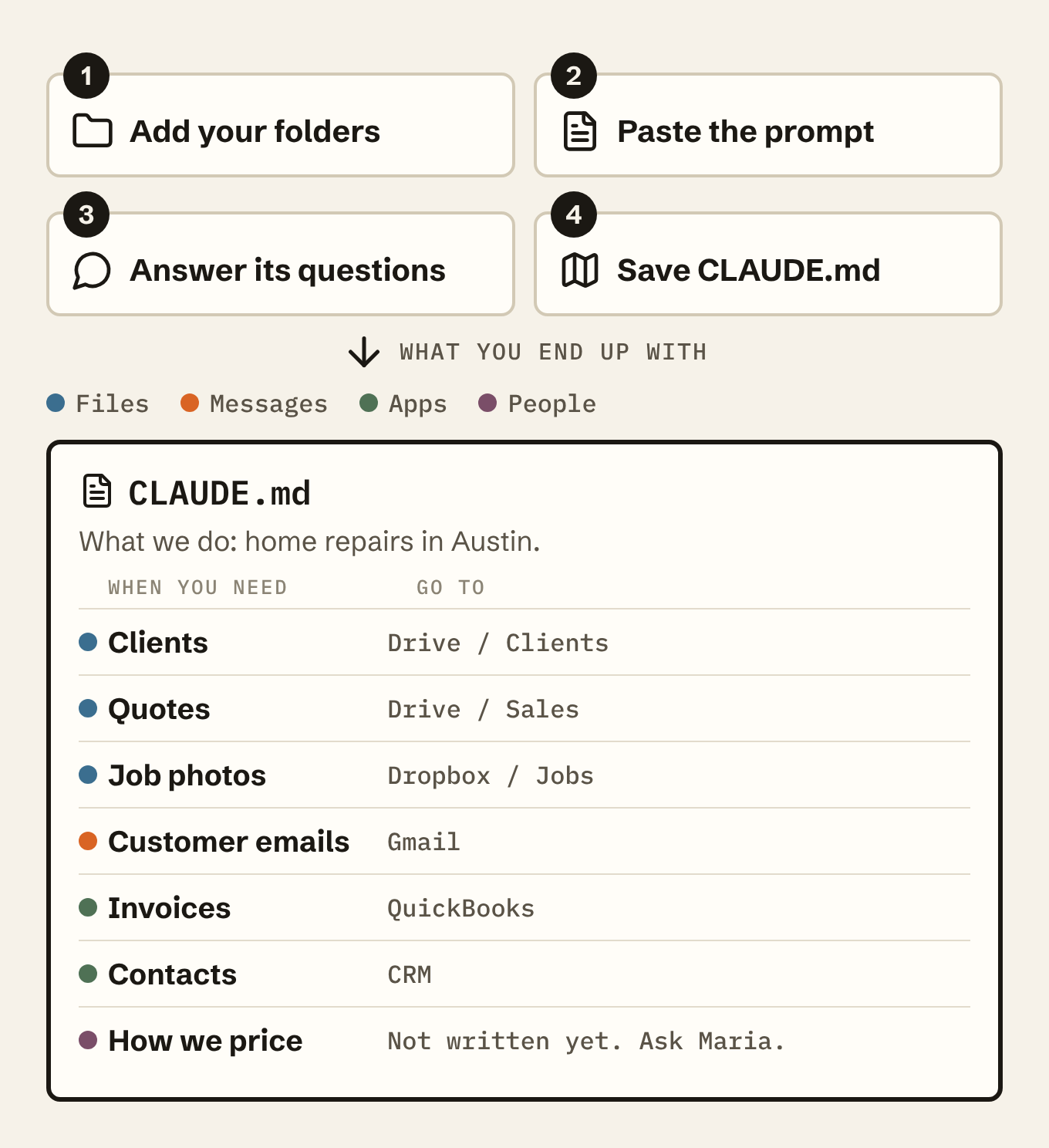
You need the Claude desktop app on a paid plan. It can look inside folders on your computer and drives you've connected.
1. Add your folders. Start a new chat, or a new task in Cowork. Click + and add the folder where most of your work lives. Files in Google Drive? Connect it under Customize, then Connectors.
2. Paste this prompt. It only reads names. Nothing gets moved or opened.
I want to make a map of my work so an AI
assistant can find things on its own.

1. Look through the folders and drives I've
   shared with you. Read the file and folder
   names only. Don't open, move, change or
   delete anything.
2. Then ask me these questions, one at a time:
   - What does my business do, in one sentence?
   - Where else does my work live that you
     can't see? For example email, texts,
     Slack, a CRM, my phone or paper.
   - Optional: what do people here know that
     isn't written down anywhere?
3. Write a one-page file called CLAUDE.md in
   the top folder, in plain English, with:
   - What the business does
   - Where each kind of thing lives
   - What isn't written down yet
Show me the file before you save it.
3. Answer its questions. Short answers are fine.
4. Check the map and save it. Using Codex, Cursor or another agent? Name the file AGENTS.md. The contents are the same.
The walk test
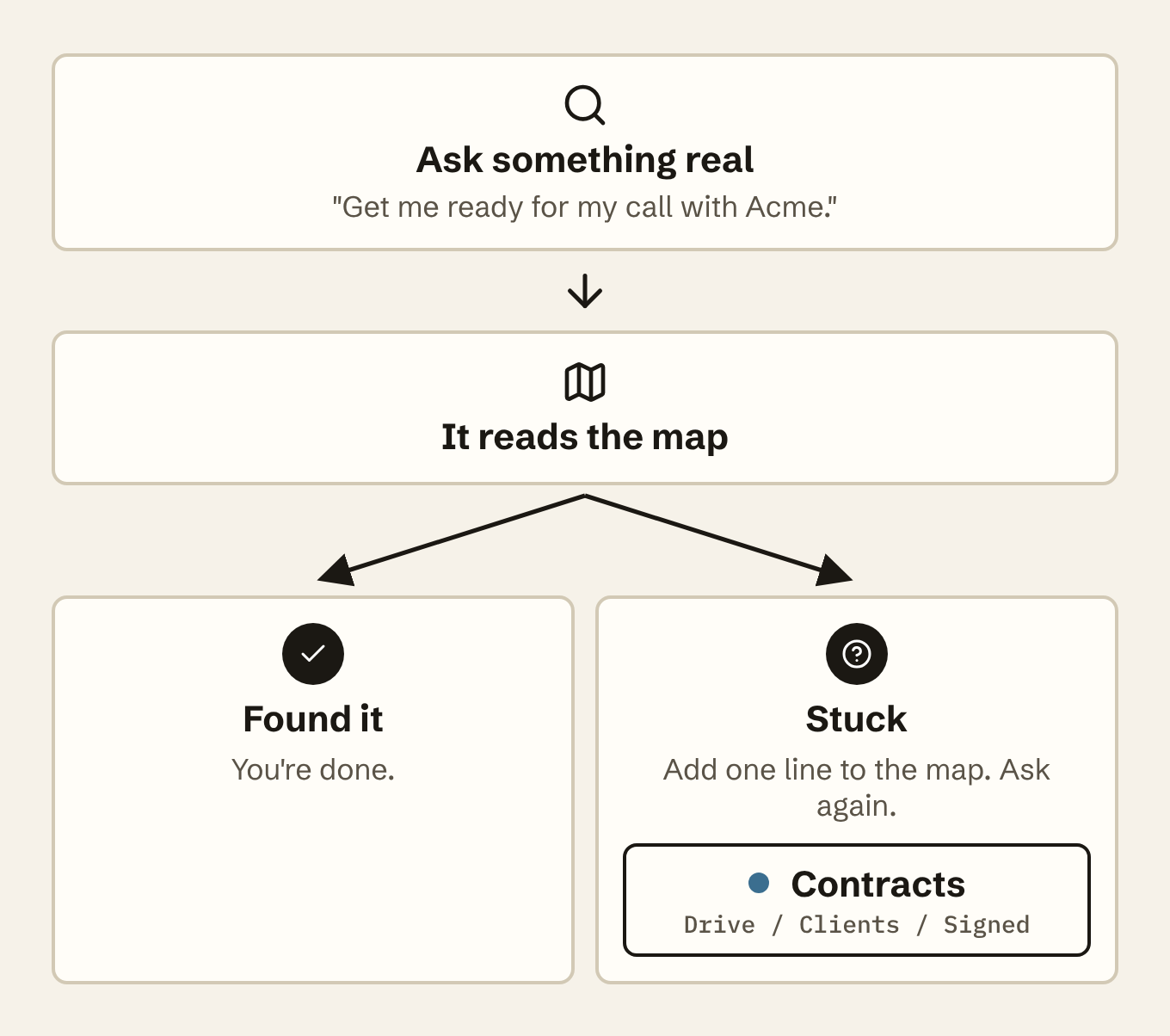
Add the folder with your map, then give it a real first-week job:
Get me ready for my call with [client]
tomorrow: who they are, what we've sent
them and what's still open.
- Found it? You're done.
- Stuck? Add one line to the map. Couldn't find the signed contract? Add where contracts live.
- From now on, add that folder at the start of each chat. Your agent finds the map on its own.
Get the Monday email and reply to any issue. Tell me where your AI got stuck. I read every one.
Part 2: Move it into one home
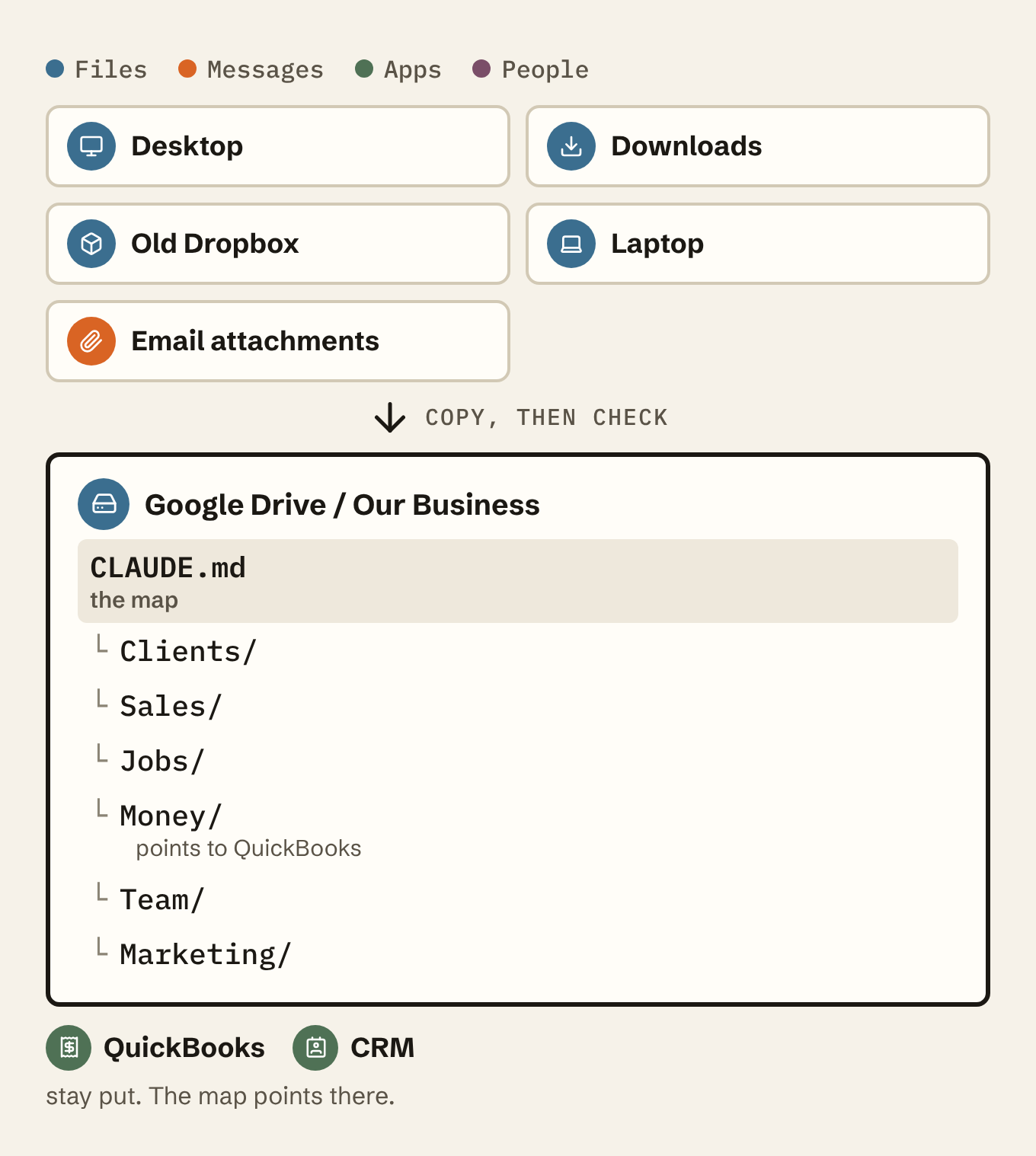
The map works with files where they are. One home makes it simpler, and a team needs one anyway. Go one area at a time, over a few weeks if you like.
- Pick the drive your team already uses: Google Drive, OneDrive or Dropbox.
- One home per fact. Write it in one place and point to it everywhere else, so two copies never disagree.
- Apps keep their data. Invoices stay in QuickBooks and contacts stay in the CRM. The map points to them.
- Copy first. Delete the old copies only after you've checked.
- Start with the area your walk test needed. If it was client prep, start with Clients.
Help me move my files into one home, one
area at a time.

1. Suggest a simple folder layout for
   [Google Drive], using the areas in the map.
   No more than six top folders.
2. Start with one area. List the files you'd
   move and where each would go. Wait for my OK.
3. Copy the files. Don't delete anything. I'll
   remove the old copies after I've checked.
4. Update the map so it points to the new
   place. Then ask if I want to do the next area.
If your AI can't move files in your drive, it gives you the list and you drag them over.
For a team
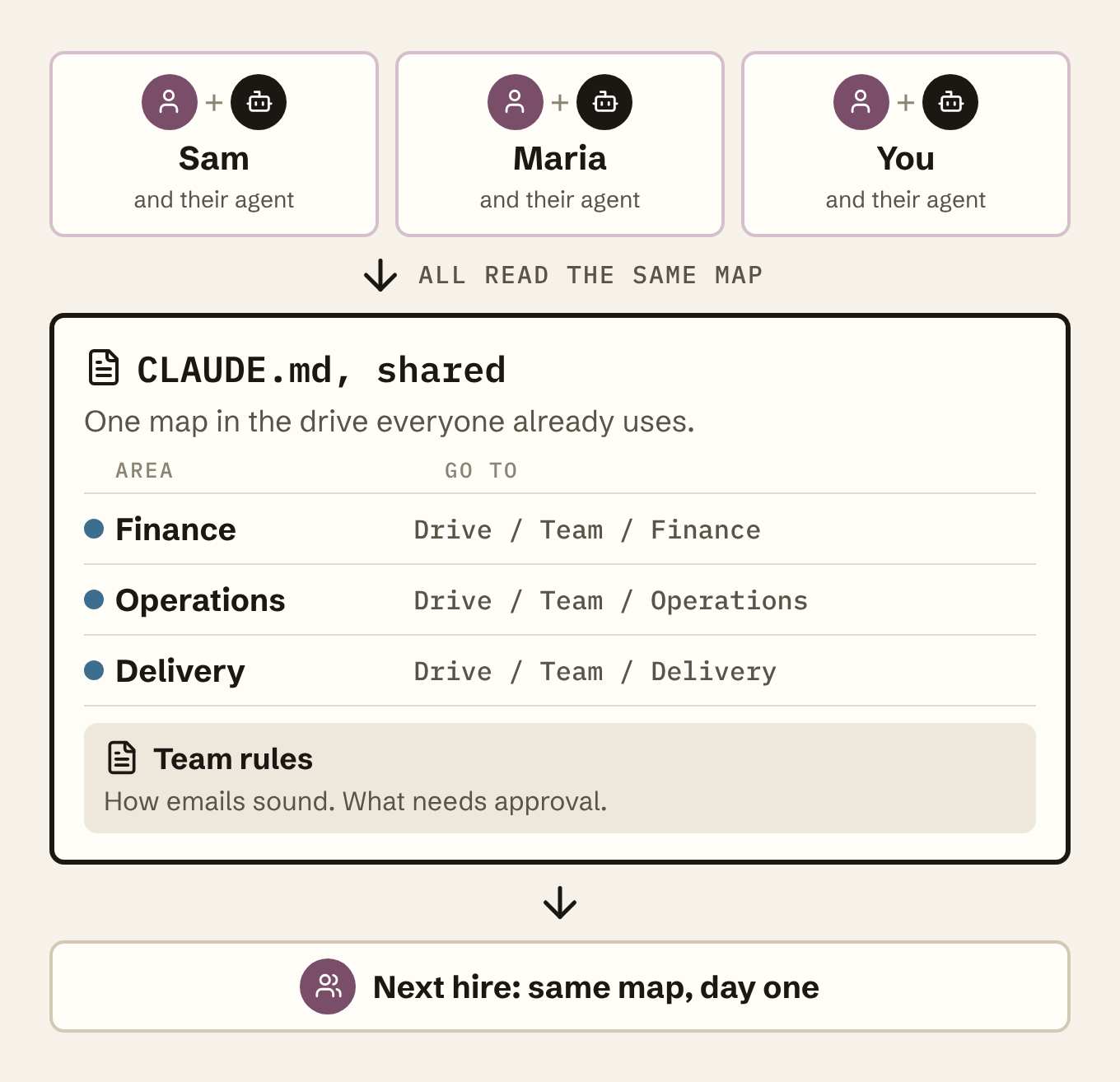
- One shared map in the drive everyone already uses.
- A few shared areas, like Finance, Operations and Delivery, each listed in the map.
- One team rules file: how emails sound and what needs approval.
- One shared job to test first, like a new client's first week.
Your next human hire gets the same map on day one.
Want to do this hands-on?
If you're in Austin and want to get hands-on with this:
- Tue Nov 3: Build Your Own AI Chief of Staff. A free two-hour workshop at the Texas State SBDC, 10 AM to noon. You leave with a working assistant on your laptop. You'll need a paid Claude plan. Register here.
- Sat Nov 14: save the date. A hands-on Saturday to get your map, your files and your first jobs working for your whole team. Details are coming soon.
Prefer to start on your own? The free class guide and starter kit are what we use in the workshop.