
 | Hi, I'm Jonathan Malkin. I teach owners and teams to solve real business problems with AI. |
Monday's issue tells you what's worth trying. Thursday lessons walk you through doing it in your own business.
Get Your AI Agents on the Same Page
Last week I audited my own setup and found Grok Bot had a pile of its own files and Claude had a stack of memory files. I had both move everything into my workspace. Now Grok Bot keeps only pointers to it.
If you use more than one AI, each one keeps its own memory. Tell Claude about a new client on Monday, and your Grok Bot still won't know on Tuesday. You end up repeating yourself, and two AIs give you two different answers to the same question.
This lesson is for you if you use two or more AIs, like Claude or ChatGPT plus a personal agent such as Grok Bot or Muse. Using only one? Start with last week's lesson.
A lesson in four steps: get every AI you use reading from one workspace, so you stop telling them the same thing twice.
What you'll do:
1. Move what each AI knows into your workspace.
2. Turn off built-in memory.
3. Give your personal agents one rule.
4. Ask them all the same question.
Your files have one home. Your AIs' notes don't.
Last week's lesson gave your work one home: a workspace, with a map that tells any AI where to look. That settles where your files live. Each AI still keeps its own notes about you, though. That memory is just files too, stored inside each app, where your other AIs can't read them.
Two kinds of memory
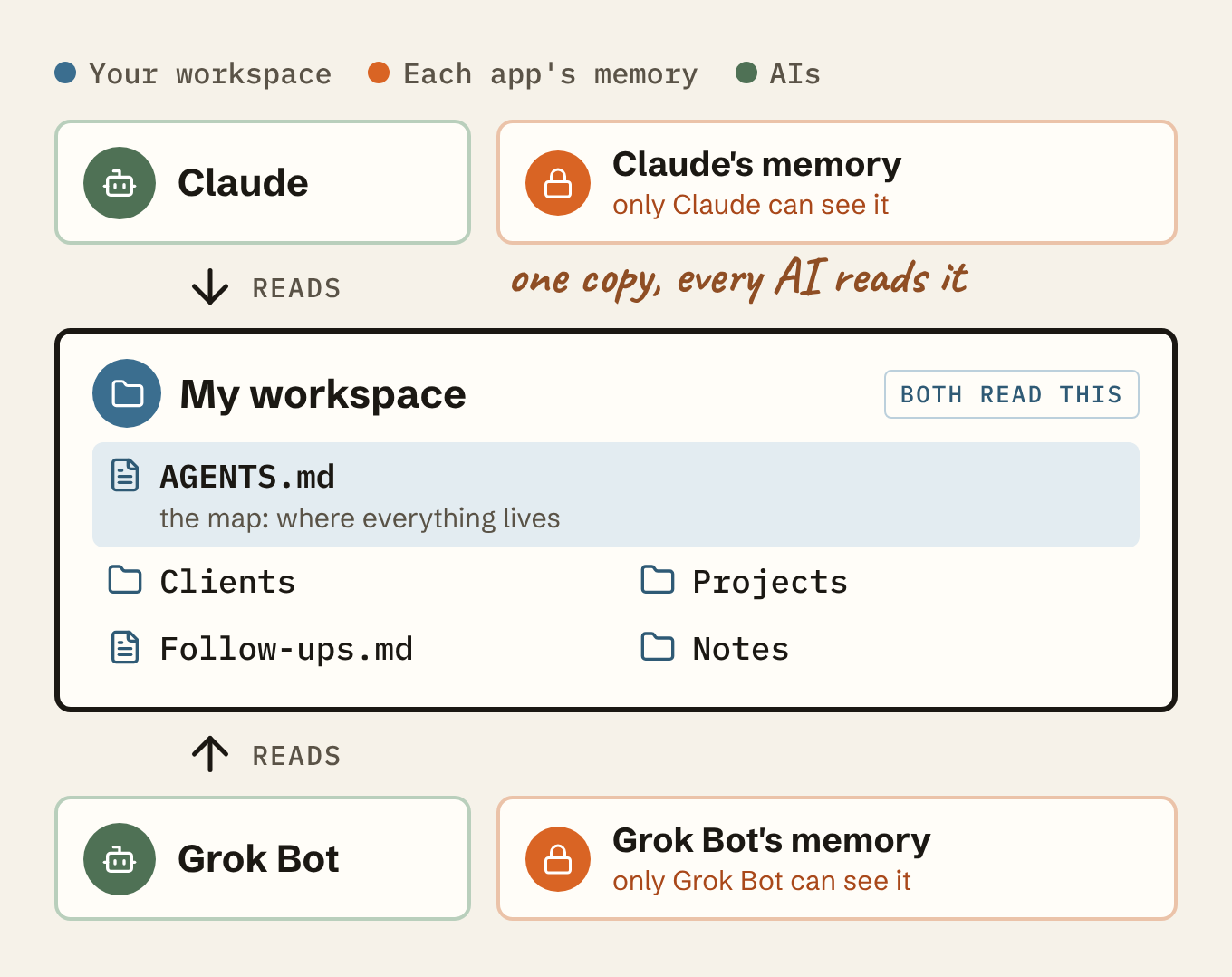
- Each app's own memory. Claude's memory, ChatGPT's saved memories and the notes a personal agent like Grok Bot or Muse keeps are all stored inside that app, outside your workspace. One AI can't see what another remembers.
- Your workspace is one main folder you own, with your files and folders inside and a map that says where things are. Every AI you point at it reads the same thing.
So keep what matters in your workspace, and let each AI's memory hold only a pointer to it: a short note that says where to look.
Step 1: Move what each AI knows into your workspace
Run this in every AI you use that can open your workspace, personal agents included. For one that can't, like ChatGPT in a browser, ask it: "Write out everything you remember about me, plus my custom instructions." Then paste the answer into one that can.
No workspace yet? Make one main folder on your computer, and tell the AI where it is when it asks. It starts the map for you. Last week's lesson covers the full map and gathering all your files into it if you want to go deeper.
Where does your workspace live? It matters for keeping every AI current.
- A folder that syncs on its own (Google Drive, Dropbox, OneDrive, iCloud): keep the folder available offline, so your AI can open the files. A change can take a minute to reach your other AIs. If two answers differ right after an update, wait and ask again.
- GitHub: a change stays on the computer where it was made until it's pushed up, and your other AIs see it only after they pull. Add this line to your map: "Pull before you read. Push after you save." The step 3 rules include it too.
Move everything you keep about me into my
workspace, so every AI I use can read it.

First, ask me where my workspace is. I can
paste its location or describe it, and you
find it.

1. Check everything you keep outside my
   workspace: saved memory, custom
   instructions, profile, and any notes or
   files you maintain.
2. Read the map file in my workspace
   (CLAUDE.md or AGENTS.md). No map yet?
   Start one that lists each kind of file
   and where it lives.
3. For each item, find where it belongs. If
   it's already there, don't copy it again.
   If there's no good home, suggest one.
   Leave out passwords and account
   numbers.
4. Show me the plan: each item, where it
   goes, and what you'd drop as out of date.
   Ask me when two things disagree.
5. After I say yes, move each item into its
   home and update the map.
6. Replace each moved item in your own
   memory with a pointer to where it lives.
   Delete nothing until it's saved in my
   workspace. If you can't change your
   own memory, tell me what to change.
7. Tell me what you changed.
You'll probably find things one AI knows that the others don't. Seeing the plan first means nothing gets lost on the way.
Step 2: Turn off built-in memory
Once it's in your workspace, built-in memory only creates second copies that stop matching. Turn it off where you can. Each app has its own switch, and turning off one doesn't touch the others.
- Claude (app and Cowork)
- Open Settings, then Your Claude (Settings, then Memory on older versions).
- Turn off "Memory from chats", or choose Pause memory.
- In a Claude project, also turn off "Use account memory".
- Claude Code
- Type
/memoryand switch auto memory off. - It reads CLAUDE.md from your workspace on its own, or AGENTS.md when there's no CLAUDE.md. Update it first, since older versions read only CLAUDE.md.
- Type
- ChatGPT
- Open Settings, then Personalization, then Memory.
- Turn off "Reference saved memories". That also turns off chat history.
- Codex
- In the ChatGPT desktop app, open Settings, then Personalization.
- Make sure "Enable Codex memories" is off. It's off by default, and it's separate from ChatGPT's memory.
- It reads AGENTS.md on its own when you open your workspace as the project.
- Grok Bot and Muse
- I found no setting that turns memory off. You can ask Muse to forget specific things.
- Step 3 handles them.
Then point the rest at your workspace. Claude Code and Codex already read it. For Claude in Cowork, paste this into its instructions (Settings, then Cowork, or on newer versions Settings, then Your Claude, then Instructions for Claude). For a ChatGPT or Claude project, paste it into the project instructions and upload your map file plus the workspace files it needs most:
Before you answer, read the map file in my
workspace (CLAUDE.md or AGENTS.md). It says
where everything lives. If you learn something
worth keeping, tell me and I'll add it to the
workspace.
Using Claude and ChatGPT tools together? You can keep both map files up to date, or keep just one. Claude Code reads AGENTS.md when there's no CLAUDE.md, and Codex reads AGENTS.md too, so one AGENTS.md works for both.
Step 3: Give your personal agents one rule
Personal agents like Grok Bot and Muse keep notes you can't switch off. So the shared rules go in your map once, each agent's own instructions get their own file in your workspace, and the agent keeps one line pointing to both. Send this to your agent. With Grok Bot, send it to the Bot you talk to most.
New rule for how you keep notes.

1. Add these rules to the map file in my
   workspace (AGENTS.md or CLAUDE.md):
   - My workspace is the one place for
     facts, decisions and to-dos.
   - Save anything new there before you
     reply.
   - Your own memory keeps only pointers.
   - If memory and the workspace disagree,
     the workspace wins.
   - If my workspace is on GitHub, pull
     before you read and push after you
     save.
2. Copy the instructions that are only for
   you into Bots/[your name].md in my
   workspace, and list that file in the map.
3. Show me the changes before you save.
4. After I say yes, replace your own
   instructions with one line: "Before
   acting, read the map file in my
   workspace, then Bots/[your name].md."
If you can't open my workspace, tell me
what to add and I'll add it.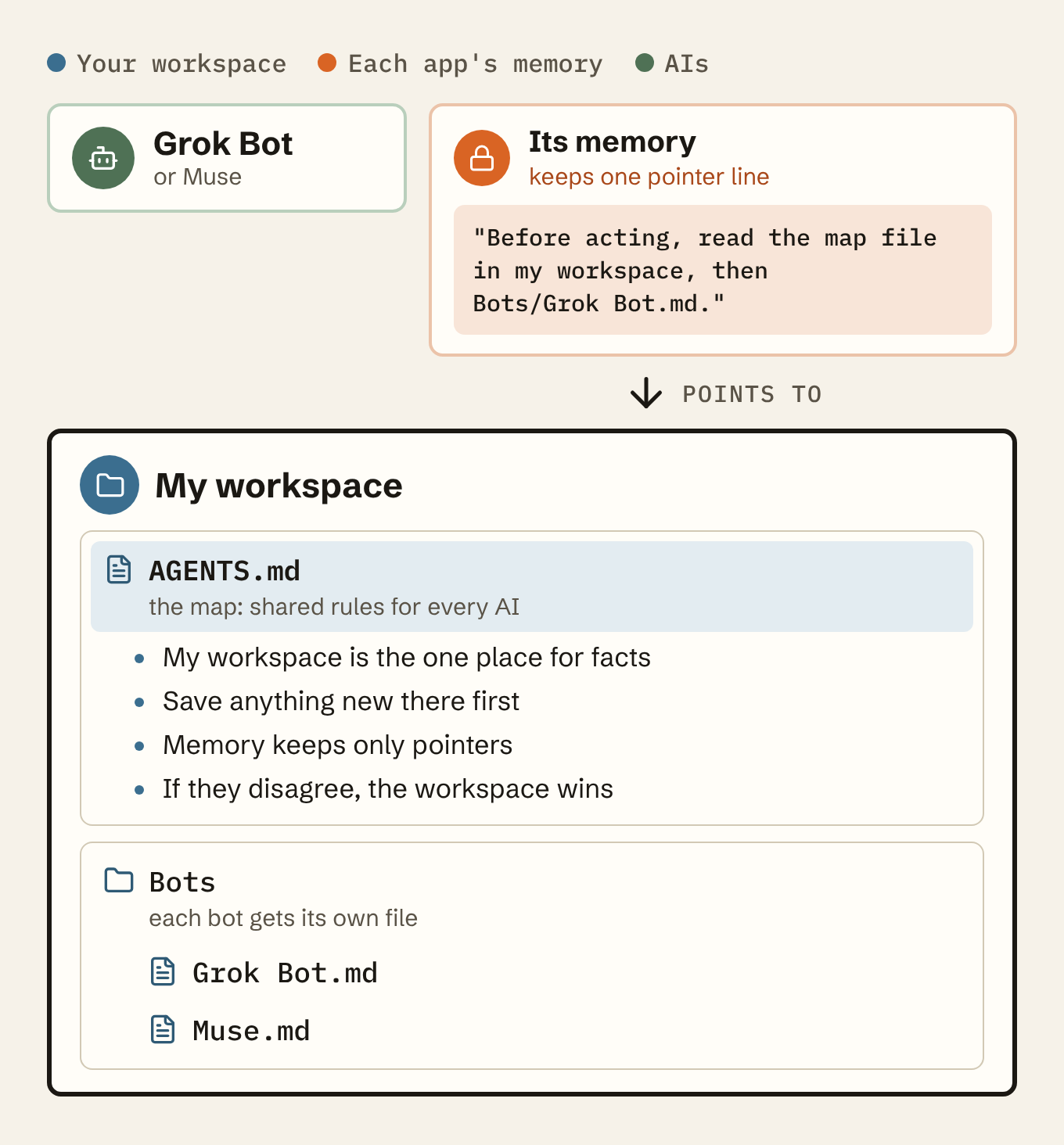
Because the shared rules live in the map, Claude and Codex follow them too.
Several Grok Bots? Each Bot keeps its own memory, so every Bot needs the pointer. That Bot can pass it on. Send it this next:
Now give my other Bots the same setup.
Message each Bot and ask it to:
1. Move the instructions that are only for
   it into Bots/[its name].md in my
   workspace, and list that file in the map.
2. Replace its own instructions with:
   "Before acting, read the map file in my
   workspace, then Bots/[its name].md."
3. Plan how to move anything in its
   memory that isn't in my workspace yet.
Show me every Bot's plan in one list.
After I say yes, have each Bot make its
changes, delete nothing until it's in my
workspace, and tell you what it changed.
Muse is one agent, whether you message it in the Muse app or WhatsApp, so the first prompt in this step is enough.
That's how my Grok Bot works now. Its own notes are just pointers into my workspace.
Step 4: Ask them all the same question
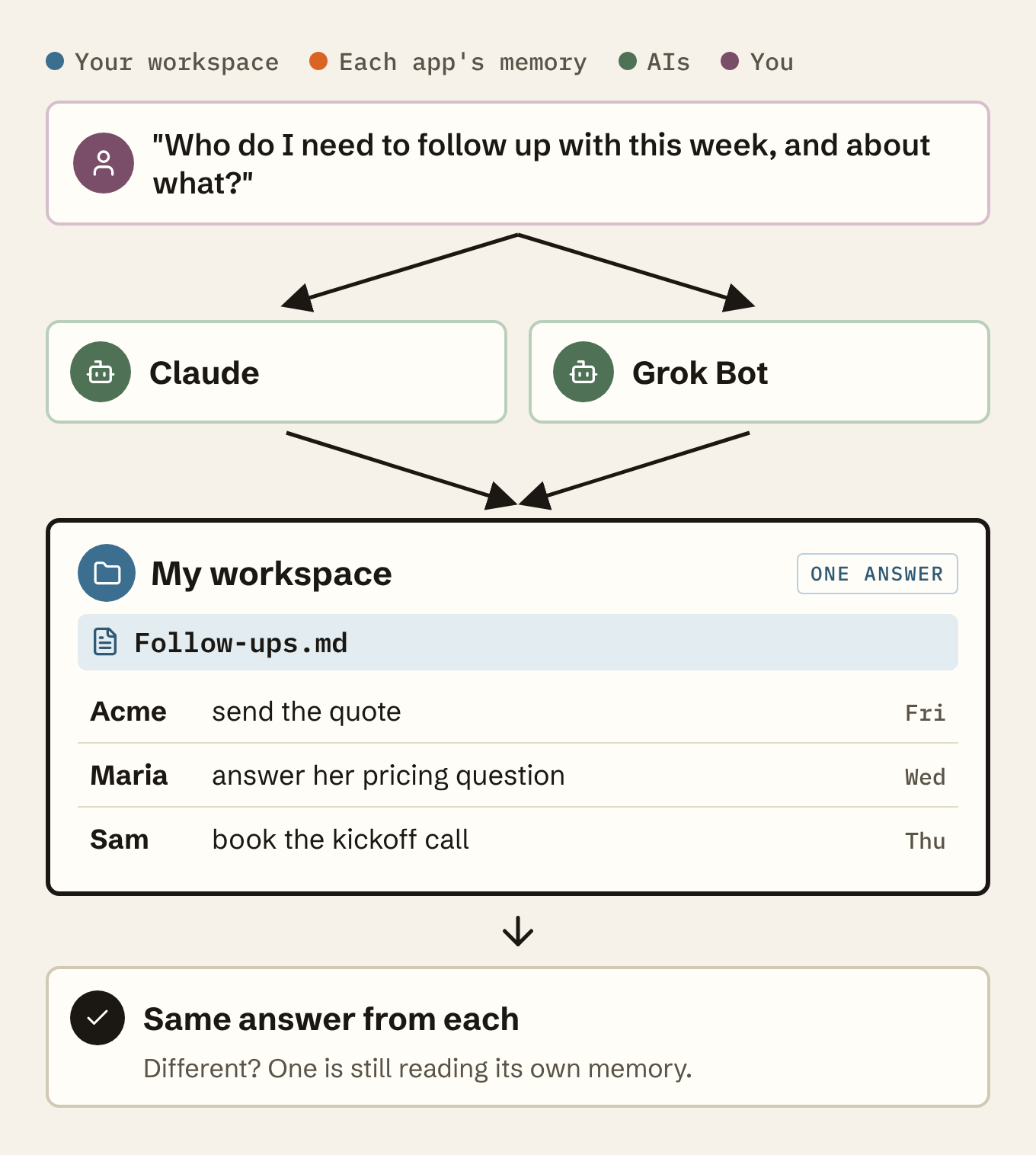
Who do I need to follow up with this week,
and about what?
- Same answer from each? They're on the same page. No follow-ups to ask about? Ask about anything you told only one AI.
- Different answers? One is still reading its own memory. Find the gap, add it to the workspace, and ask again.
Get the Monday email and reply to any issue. Tell me what didn't match. I read every one.
This week
- Run the step 1 prompt in every AI you use.
- Turn off built-in memory, and give your personal agents the rule.
- Ask them all the same question.
Want to do this hands-on?
If you're in Austin and want to get hands-on with this:
- Tue Nov 3: Build Your Own AI Chief of Staff. A free two-hour workshop at the Texas State SBDC, 10 AM to noon. You leave with a working assistant on your laptop. You'll need a paid Claude plan. Registration is full: event details.
- Sat Nov 21: save the date. A hands-on Saturday to get your map, your files and your first jobs working for your whole team. Reply for first dibs.
Learn more
The official help pages behind each setting above, checked Oct 23, 2026.
- Claude: Memory, Cowork, Projects
- Claude Code: CLAUDE.md and auto memory
- ChatGPT: Memory, Custom instructions, Projects
- Codex: AGENTS.md, Memories
- Grok Bot: Overview, Bots
- Muse: Introducing Muse
- Also using Gemini or Copilot? Each has its own memory switch: Gemini, Microsoft 365 Copilot